
How to Assign an Admin Role on Your Wix Website

Log in to your Wix account
Go to www.wix.com and sign in with your email and password.
Go to your Dashboard
From the main page, click on the site you want to manage. This will open your Site Dashboard.

Click “Settings”
On the left-hand menu of your dashboard, scroll down and click “Settings.”
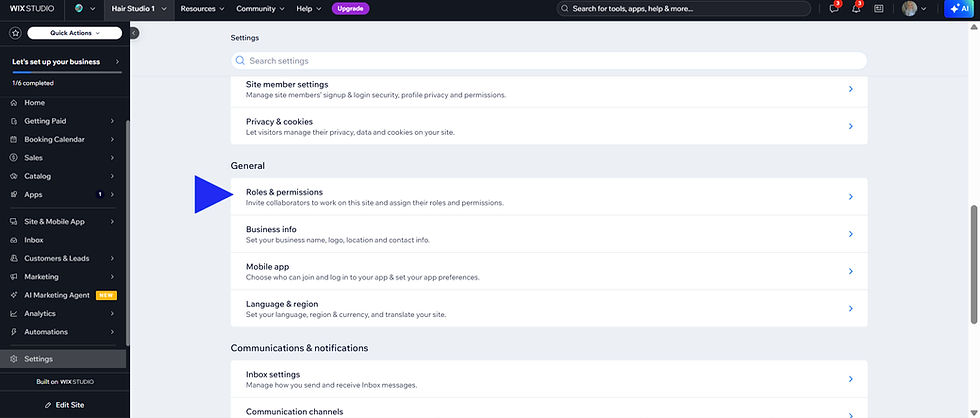
Select “Roles & Permissions”
Under Settings, choose “Roles & Permissions.” This is where you manage team members.

Click “Invite People”
At the top right, click the “Invite People” button.
Enter the email address
Type the email address support@wixsolutions.co.uk

Choose a Role: “Co-Owner” or “Admin”
Select Admin if you want to give full access (but no billing/ownership changes).
Select Co-Owner if you want them to have almost the same permissions as you (except deleting the site or changing ownership).
Click “Send Invite”
The person will receive an email invitation. Once they accept, they will be added to your team.
✅ That’s it! You’ve successfully assigned someone to an admin role.

FAQ
1. Why would I need to assign an admin role on my Wix website?
You may want to assign an admin role if someone is helping you manage your website, such as a designer, SEO specialist, developer, or marketing assistant. It allows them to access the site and make changes without needing your personal login details.
2. Where do I go in Wix to add someone to my website team?
You start by logging into your Wix account, opening the correct site dashboard, going to Settings, and then selecting Roles & Permissions. That is the section where team access is managed.
3. How do I invite someone to become an admin on my Wix site?
In the Roles & Permissions area, click Invite People, enter the person’s email address, choose the correct role, and send the invitation. Once they accept the email invite, they will be added to your website team.
4. What is the difference between Admin and Co-Owner in Wix?
According to the article, an Admin role gives full access but does not allow billing or ownership changes. A Co-Owner has almost the same level of access as the owner, but still cannot delete the site or transfer ownership.
5. Which role should I choose for someone helping with website edits or SEO?
In many cases, Admin is the right choice if you want someone to help with website updates, content changes, or SEO work without giving them control over billing or ownership. That makes it a practical option for professional support.
6. Does the person I invite need their own Wix account?
They will need to accept the invitation sent by email through Wix. In practice, that usually means they need access to a Wix account linked to that email address so they can join your website team properly. The article confirms that access is granted through an email invitation.
7. Can I give someone access without sharing my password?
Yes, and that is one of the main benefits of using Wix roles and permissions. Instead of sharing your personal login, you invite the person through the dashboard and control what level of access they receive.
8. What happens after I send the invite?
The invited person receives an email invitation from Wix. Once they accept it, they are added to your team and can access the website according to the role you selected for them.
9. Can an admin take over ownership of my website?
No. The article states that the Admin role gives full access, but it does not allow billing or ownership changes. This means you can still keep control of the site while letting someone help manage it.
10. Is assigning an admin role a difficult process?
No, it is a straightforward process. The article breaks it down into simple steps: log in, open your dashboard, go to Settings, choose Roles & Permissions, click Invite People, enter the email, select the role, and send the invite.

